Frequently Asked Questions for
-48 Power Switches
Last Updated 01/13/2014. 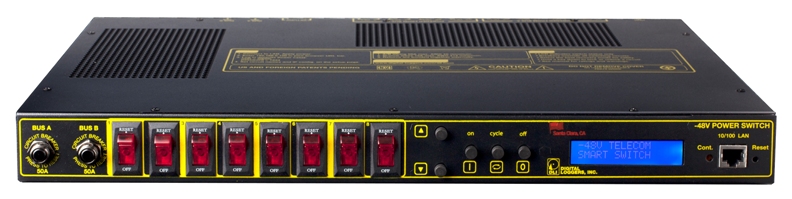 Questions? Like to order? Call now - (408) 330-5599 How do I set up
network access from Windows? Question: What are the contact ratings? Answer: All eight internal T-90 Relays are rated at 20A DC. Contacts are MOV protected. Relays are RU and CE approved, and rated at 250,000 operations MTBF at 50% load. Case terminals are rated at 25A Breakers are rated at 15A. Only stranded wire of appropriate gauge should be used. Terminals must be well torqued. It is wise to recheck torque after completing the installation. Heavy traces and gold plating are used to minimize internal resistance between the terminals and relay contacts, typically 25m Ohms, so internal contact power dissipation is not normally a consideration. For maximum flexibility, relay contacts are unprotected. An internal MOV is provided for arc protection to extend contact life. Question: How are the A&B busses connected? Answer: The first four relays connect to "BUS A". Relays 5-8 connect to "BUS B". The web server is powered from either bus. The return connections are bonded internally. Each bus and branch circuit includes a separate breaker. Question: What are the power requirements? Answer: The controller dissipates a maximum of 10.48W at 48VDC input with all relays on. Power dissipation decreases with input voltage due to the use of an efficient switching power supply. Typical dissipation with relays off is 3.1W. Although the case is well ventilated, ambient air temperature should not exceed 140ºF for maximum reliability. The internal power supply is redundant and diode isolated. It is powered by either the A or B bus. Question: What are the mounting dimensions and physical size? Answer: RETMA 1-U form factor, 13" mounting depth including allowance for cables. Height 1.750", width 17.00", ear-to-ear width 19.00 Question: What is the current version of firmware? Answer: The current version is on the update page Find the revision history here, and firmware update instructions here. Question: What is the default IP address? How do I reset to defaults? What is the default password? Answer: If you have lost the IP address or admin password or selected DHCP when it is not available, follow this procedure to reset to the default IP address of 192.168.0.100:
The default master login is "admin" and default password is "1234". This procedure resets the admin login and IP address and lockout, but doesn't affect outlet names and links. Question: On initial setup, I can't establish a Ethernet communications from a Windows PC. Help! Answer: If your default Windows settings won’t access the controller, use a crossover cable and follow these steps to reach the controller’s IP. METHOD 1
METHOD 2
Question: Can you explain the auto-ping settings? Answer:
Number of times the ping has to fail (in a row) on a given device before it is power cycled. Number of times to attempt power cycling before giving up and disabling auto-ping. Question: How can I control the switch from my own applications? Answer: Download
the latest User Utility. Your application can use HTTP communications. There
is also a C++ example with source (4/11/06 - 483k). This
program displays the controller name, switch names and switch status via HTTP. You can also toggle
the switches on and off. Also included is PowerMan support for Linux. Question: Can you develop custom firmware for my application? Answer: Gladly. We've done this for many customers. Our programming rate is $75/hour. After we agree on a -very specific- project description, we can send you an estimate of the time involved to code, debug and test.
|
Question: Can you develop custom hardware for my application? Answer: Gladly. We've done this for many customers. Please call with your requirements Question: Do you support PowerMan? Answer: Yes, absolutely. The latest code is added to the tarball. Download the latest User Utility here.
If we haven't answered your questions here, please call (408) 330-5599 or send us an email. We'll be glad to help. © Digital Loggers, Inc. 2005. |